How to Check FAB Bank Balance Using the Mobile Banking App?
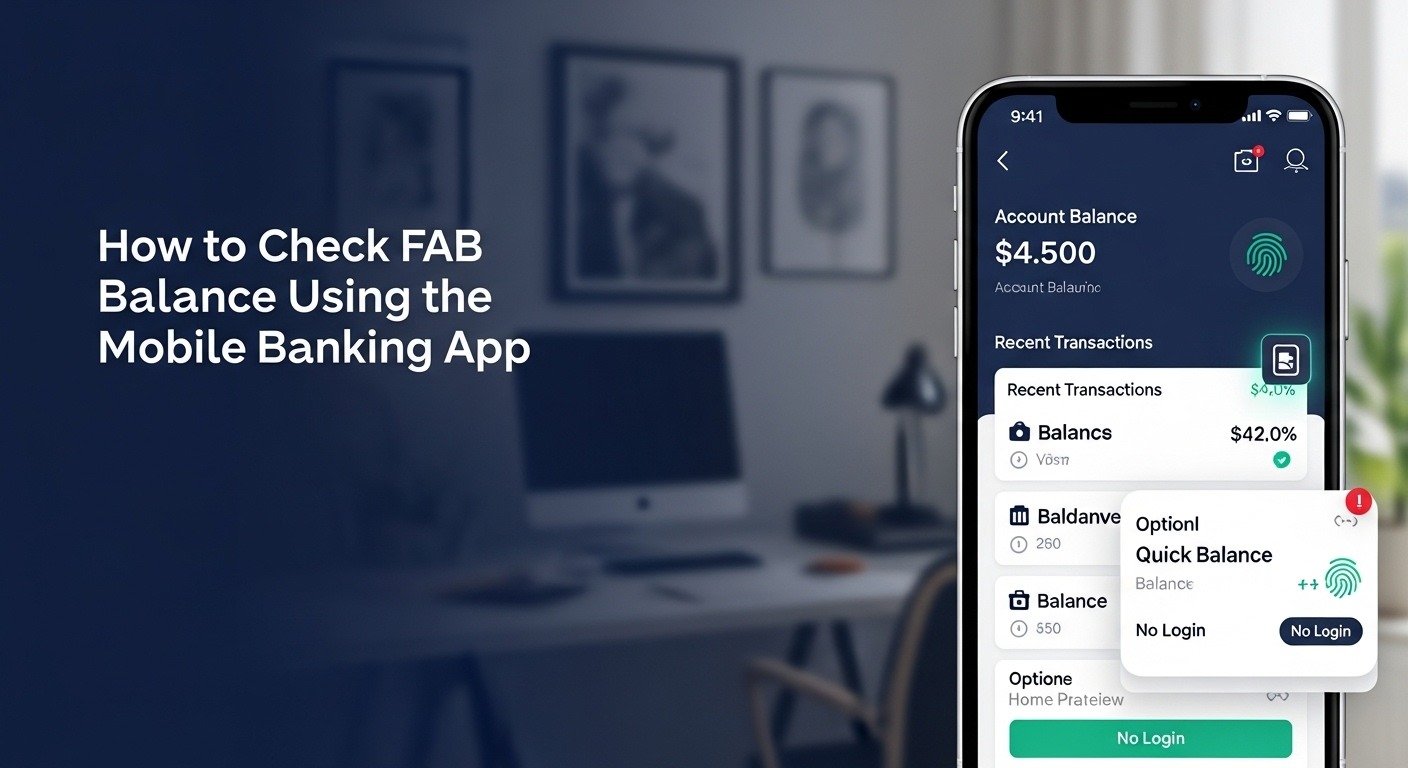
Tap the FAB app. Use fingerprint or face ID. The dashboard opens. The balance is at the top. That is a complete fab bank balance check in under ten seconds. Need more? Tap the account. Available balance and current balance appear side by side. Recent transactions sit below. Swipe left or right for credit cards and loans. Available balance is the money ready to spend now. Current balance includes pending transactions that have not fully cleared. Knowing the difference prevents overdraft fees.
Downloading and Installing the FAB App
Getting the right app matters. Fake banking apps appear on app stores occasionally. They look real. They steal login details.
For iPhone. Open the Apple App Store. Tap the search tab. Type “First Abu Dhabi Bank.” Look for the official FAB logo – a blue square with white FAB letters. The developer name should be “First Abu Dhabi Bank P.J.S.C.” Tap Get. Use face ID or password to confirm.
For Android. Open the Google Play Store. Tap the search bar. Type “First Abu Dhabi Bank.” Look for the same blue logo. Verify the developer name. Tap Install. Wait for the download.
After installation. Open the app. Two paths exist. Customers who already use FAB online banking on a computer tap “Login” and enter the same username and password. New customers tap “Register.” The app asks for the debit card number and the 4-digit PIN. Then asks for the mobile number registered with the bank. An OTP arrives by SMS. Enter it. Registration completes.
Biometric setup. The app asks to enable fingerprint or face ID during registration. Tap “Enable.” The phone asks for a fingerprint or face scan once. After that, opening the app only requires that scan. No password typing ever again.
If the biometric setup is skipped, enable it later. Open the app. Go to the menu (three lines or profile icon). Tap Settings. Tap Security. Tap Biometric Login. Toggle it on.
How to Check Balance Step by Step
Step one: Tap the FAB app icon on the phone.
Step two: Use fingerprint or face ID to log in. If biometrics are not enabled, type the password.
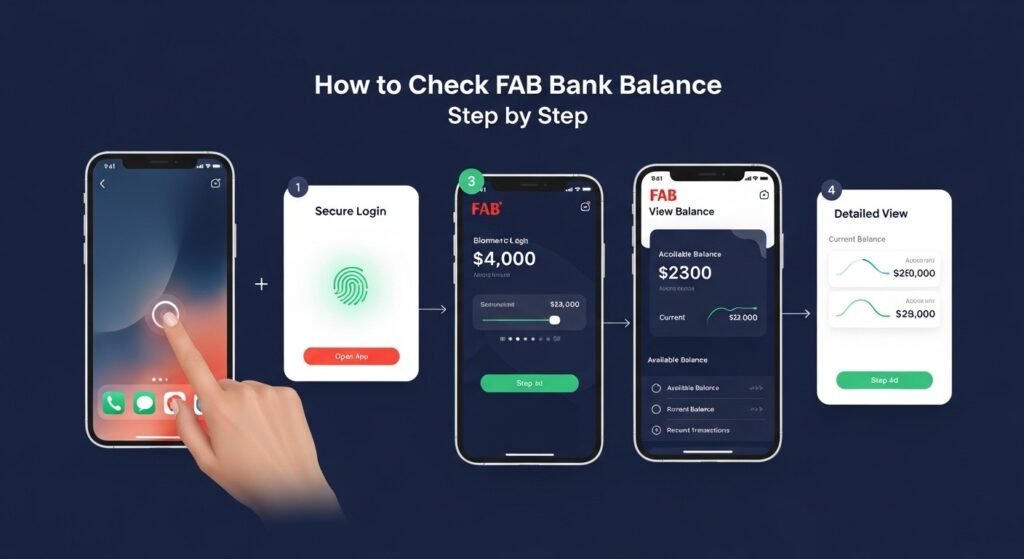
Step three: Look at the top of the dashboard. The primary account balance appears in large text.
Step four: For more details, tap the account. Available balance and current balance appear side by side. Recent transactions are listed below.
Why the Mobile App Beats Other Methods
The FAB mobile app is not the only way to check a balance. SMS works without the internet. WhatsApp works without downloading another app. Online banking works on a computer. But the app does things none of those can do.
Speed. The app keeps the user logged in through biometrics. No typing. No waiting for SMS replies. The balance appears instantly.
Detail. SMS shows only a number. The app shows available balance, current balance, pending transactions, and the last ten transactions all on one screen.
Multi-account view. A customer with three accounts and two credit cards sees everything by swiping left or right. No separate logins. No confusion.
Offline widget. The home screen widget shows the balance without even opening the app. No other method does that.
Understanding What the Dashboard Shows
Many users misunderstand the numbers on the dashboard. Here is what each one means.
Primary account balance. This is the top number. Large font. Easy to find. But this number alone is dangerous to rely on.
Available balance. Below the large number, smaller text says “Available.” This is the real amount that can be spent right now. It subtracts pending transactions, holds from hotels or fuel stations, and uncleared checks.
Current balance. Next to the available balance, “Current” appears. This is the total money in the account before subtracting pending items. The current balance is always higher than or equal to the available balance.
Example. The current balance shows 5,000 AED. Available shows 3,200 AED. Spending 4,000 AED using the available number causes an overdraft. Always spend from the available balance, not the current balance.
Recent transactions. Below the balances, five to ten transactions appear. Each shows date, merchant name, and amount. Pending transactions have a clock icon or the word “Pending.” These are not yet deducted from the current balance, but are already deducted from the available balance.
How to Check Different Accounts and Credit Cards
Most FAB customers have more than one product with the bank. A salary account. A savings account. A credit card. Maybe a car loan or mortgage. The app shows everything.
Switching between accounts. On the dashboard, look for small dots at the bottom of the screen. Swipe left or right. Each swipe moves to a different account or card. The balance at the top changes to match that product.
Credit card details. When a credit card appears on the dashboard, the balance shown is the outstanding amount owed. Tap the card. A new screen opens showing:
- Outstanding balance (total owed now)
- Minimum payment due (smaller amount to avoid late fees)
- Payment due date (calendar date)
- Available credit limit (how much more can be spent)
- Last statement date and amount
Loan accounts. Car loans, personal loans, and mortgages appear as separate cards. Tap any loan. The screen shows:
- Outstanding principal (remaining amount to pay)
- Next payment date
- Next payment amount
- Total paid to date
- Interest rate
Fixed deposits. These appear as cards, too. Tap to see the deposit amount, interest rate, maturity date, and expected profit at maturity.
Quick Balance Features That Save Time
Logging in takes seconds. But FAB built two features that make it even faster.
Home screen widget. This puts the balance on the phone’s home screen. No app opening. No login. Just a number.
To set it up:
- iPhone: Touch and hold an empty area of the home screen. Tap the plus icon in the top corner. Search for FAB. Choose the widget size. Tap Add Widget. The balance appears immediately.
- Android: Touch and hold an empty area of the home screen. Tap Widgets. Search or scroll to FAB. Drag the widget to the home screen.
The widget shows only the balance number. No transaction details. No account numbers. Safe for most users. If privacy is a concern, skip this feature.
Push notifications for balance changes. The app can send an alert every time money moves. After a purchase, a notification appears on the lock screen showing the amount spent and the new balance. After salary deposits, the same alert appears.
To enable:
- Open the FAB app. Go to Menu > Settings > Notifications.
- Toggle on “Balance Updates” or “Transaction Alerts.”
- Choose whether to receive alerts for all transactions or only those above a certain amount.
Troubleshooting Real Problems
The app shows the wrong balance. Do not panic. First, pull down on the dashboard screen. This forces a manual refresh. If the number does not change, log out and log back in. If still wrong, check the transaction list. Look for pending transactions. These take 24 to 48 hours to clear. After two days, if the balance is still wrong, call FAB customer service.
App shows no balance:
Just a dash or loading spinner. Check the internet connection. Open a browser. Load any website. If the internet works, close the app completely. Open it again. If still not loading, restart the phone.
Biometric login stopped working:
This happens after a phone software update sometimes. Go to phone settings. Find Biometrics or Security. Make sure your fingerprint or face ID is still registered. Then open the FAB app settings. Disable biometric login. Enable it again. Re-scan the fingerprint or face.
App crashes on open:
Close the app completely. On iPhone, swipe up from the bottom and flick the app away. On Android, tap the square button and swipe the app away. Restart the phone. Check for app updates. If it is still crashing, delete the app and download it fresh from the official store.
Forgot password:
On the login screen, tap “Forgot Password.” Enter the registered mobile number or username. FAB sends a reset link by SMS or email. Click the link. Create a new password. Must be eight characters with at least one number and one capital letter.
Security Rules That Actually Matter
Never share OTP:
FAB will never call or text asking for a one-time password. Not customer service. Not technical support. Not the fraud department. Anyone asking is a scammer.
Log out on borrowed phones:
Using the app on a friend’s phone or a work device? After finishing, go to the menu and tap Log Out. Do not save the password.
Review transaction history weekly:
Balance alone hides fraud. A thief might make a small 10 AED test transaction. The balance drops by only 10 AED. Easy to miss. Checking the full transaction list catches these test charges before a large withdrawal happens.
Update contact details:
If the mobile number or email changes, update it at a FAB branch or through customer service. Fraud alerts go to these addresses. Wrong contact information means missing critical security warnings.
Enable biometric login:
Fingerprint and face ID are harder to steal than a typed password.
Keep the app updated:
Open App Store or Google Play. Search FAB. If “Update” appears, tap it. Updates include security fixes.
Frequently Asked Questions
Q1: What is the fastest way to check a FAB balance using the app?
Open the app. Use fingerprint or face ID. The balance is on the dashboard. It takes eight seconds.
Q2: Can I see my balance without logging in every time?
Yes. Enable the home screen widget in app settings. The balance appears on the phone’s home screen.
Q3: Why does the app show two different numbers?
One is the available balance (money ready to spend). The other is the current balance (total before pending transactions). Always spend from the available balance.
Q4: Why is my app balance different from the ATM?
The app shows available balance, including pending holds. ATMs often show the current balance. Wait 24 hours. The numbers will match.
Final Thoughts
Checking a FAB bank balance using the mobile app takes eight to ten seconds. Open the app. Use fingerprint or face ID. Look at the top of the dashboard. That is the whole process. For more details, tap the account to see the available balance versus the current balance. Swipe left or right to check credit cards and loans. Enable the home screen widget to see the balance without even opening the app. A daily balance check prevents overdrafts. Catches unauthorized transactions early. It takes almost no time. For the fastest, most direct fab bank balance check, the mobile app is the right tool. Download it. Set up biometric login. Check the balance today