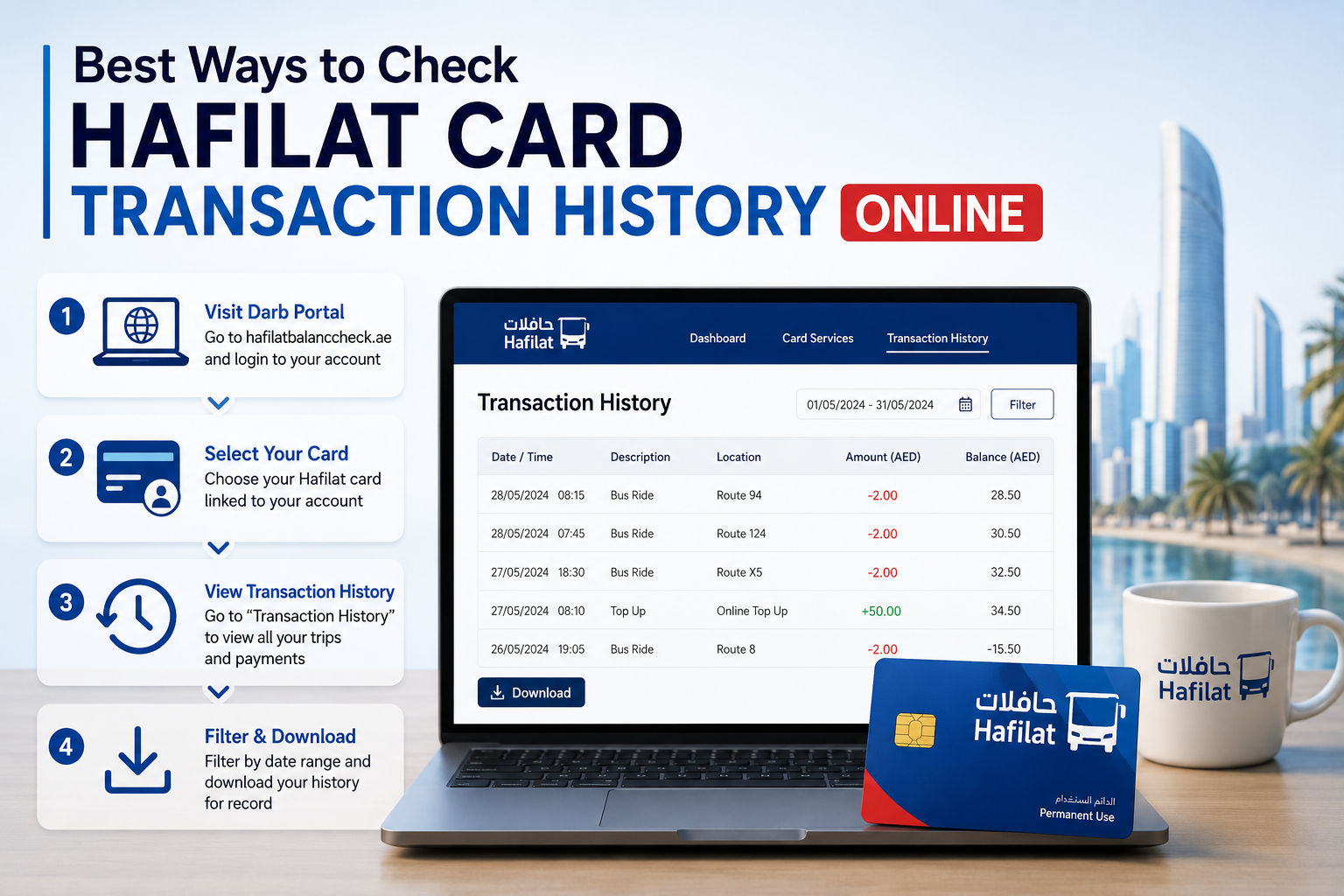
Best Ways to Check Hafilat Card Transaction History Online
Knowing your current balance is important but knowing where that balance went is equally valuable. If you have ever noticed an unexpected deduction on your Hafilat card, wondered whether a recharge went through correctly, or simply wanted to track how much you spend on public transport each week, your transaction history is the answer. A full hafilat balance check through the right platform shows you much more than just a number; it gives you a complete, timestamped record of every tap, top-up, and fare deduction linked to your card.
This guide covers every method available in 2026 to access your Hafilat card transaction history online and offline from the detailed Darb portal and mobile app to the PayIt wallet along with tips on how to use that history to manage your travel budget, spot errors, and keep your card in perfect order.
Why Your Hafilat Transaction History Matters
Most Hafilat card users check their balance before boarding a bus and think little more about their card until the next top-up. But regularly reviewing your transaction history can make a meaningful difference to how you use and manage your card.
Dispute resolution. If you believe a fare was charged incorrectly or if you tapped out but were charged the maximum route fare anyway your transaction history is the first thing customer support will ask for. Having access to a dated, timestamped record of your journeys gives you the evidence you need to file a dispute and have the charge reviewed.
Recharge confirmation. After an online recharge, it can sometimes take 15 to 30 minutes for the balance to reflect on the card. Checking your transaction history confirms whether the top-up was processed on the system’s end even before it shows on the bus validator.
Expense tracking and budget planning. Check your monthly transaction history in the Darb App. You’ll spot patterns like busier weekends or event days so you can plan and recharge before you run low. For workers, students, and families with multiple cards, transaction history turns your Hafilat account into a basic but effective travel expense ledger.
Detecting unauthorized use. If someone else has used your personalized Hafilat card or if a deduction appears on a day you didn’t travel, transaction history is how you identify and report the problem.
Pass and balance validity monitoring. Transaction history shows the date of your last recharge useful for calculating whether your balance is approaching its 3-month validity window.
What Your Transaction History Shows
Before diving into methods, it helps to know exactly what information is available when you review your Hafilat card records.
A typical Hafilat transaction record includes:
- Date and time of each transaction
- Transaction type fare deduction, card top-up, pass activation, or fine payment
- Amount deducted or added in AED
- Route or journey information in some views, the boarding and alighting location
- Balance after transaction what remained on the card after each action
- Card serial number helpful when managing multiple cards
The level of detail varies slightly between platforms; the Darb portal’s desktop view provides the most comprehensive transaction table, while the Darb app shows a condensed recent-transaction view. Both are valuable depending on your need.
Method 1: Darb Portal Most Detailed Transaction History
The official Darb portal is the most comprehensive platform for viewing your Hafilat card transaction history. It shows a full transaction table including dates, amounts, and card balances and it is accessible on any browser, desktop or mobile, 24 hours a day.
Using a computer shows transaction tables more clearly than a mobile browser, a useful tip if you need to review many entries or export records.
How to View Transaction History on the Darb Portal
Without a registered account (card serial number only):
- Go to haflatbalanccheck.ae in your browser
- Click the menu icon (☰) at the top left
- Navigate to Public Transport → Hafilat Cards → Online Services → Recharge Card
- Enter your 16-digit Hafilat card serial number exactly as printed on the back of your card
- Complete any CAPTCHA verification if prompted
- Click “OK” to proceed
- Your current balance, card type, expiry date, and recent transaction history will appear on the same page
This method works for both registered and unregistered users; you do not need a Darb account to view basic transaction history using your card serial number.
With a registered account (Emirates ID login):
- Go to haflatbalanccheck.ae and click “Login”
- Enter your registered email address and password
- Navigate to “My Cards” from the main dashboard
- Select your linked Hafilat card
- Your full balance, card status, and complete transaction history will be displayed
- Use filters (if available) to sort by date range or transaction type
- You can also download or email the PDF receipt for your records, and review all your previous top-ups anytime under the “Transaction History” section
The registered account view offers the most complete transaction history covering a longer period and more detailed journey records than the anonymous card number lookup.
Downloading Your Transaction History
From the Darb portal’s transaction history view, look for the “Download” or “Export” option, typically a PDF or CSV download button. This is particularly useful for:
- Employees submitting transport expense claims
- Students keeping records for bursary or scholarship documentation
- Anyone filing a dispute who needs printed evidence of their travel records
Save a PDF copy after each month for easy reference.
Method 2: Darb Mobile App Best for On-the-Go History
The Darb app provides quick access to your recent transaction history directly from your smartphone, no browser needed, no serial number entry required once your card is linked.
Select your linked card to view your current balance, expiry date, and recent transaction history instantly. The app also allows you to check your recent transactions to see where and when your balance was used. This helps you understand your travel pattern and detect any unusual deductions.
How to View Transaction History on the Darb App
- Download the Darb app from the Apple App Store or Google Play Store (search “Darb Abu Dhabi”)
- Open the app and log in using your registered email and password, or sign up if you are a new user entering your mobile number, email address, and creating a password
- Navigate to “My Cards” from the home screen dashboard
- Select your linked Hafilat card
- Your current balance, expiry date, and recent transactions will display on the card detail screen
- Scroll through the transaction list to view recent fare deductions, top-ups, and any pass activations
- Tap any individual transaction for more detail time, route, and amount
Setting Transaction Alerts
The Darb app allows you to set up balance alerts that notify you when your credit drops below a threshold. To get notified when your balance drops below AED 10, enable notifications in the app settings. While this is a balance alert rather than a transaction history feature, it effectively creates a real-time notification stream for every deduction keeping you informed the moment a fare is charged.
For an even more proactive approach: text “ALERT <your card number>” to 3009 to get notified when your balance drops below AED 10. This SMS-based alert works without needing the app useful for users who prefer text notifications over push alerts.
Managing Multiple Cards in the App
The app is especially helpful for families or anyone managing more than one card. If you have added multiple Hafilat cards to your Darb account for family members, employees, or backup cards you can switch between them in the “My Cards” view to check the transaction history of each card separately.
Method 3: PayIt App Alternative Transaction View
The PayIt mobile wallet by First Abu Dhabi Bank (FAB) provides a balance and recharge view for linked Hafilat cards, along with a basic transaction summary.
How to View Transaction History on PayIt
- Open the PayIt app and log in
- Tap “UAE Bills & Recharge” on the dashboard
- Select “Public Transport” and then “Hafilat”
- Select your linked Hafilat card from the list
- Your current balance, expiry date, and recent transaction history will be displayed for the linked card
The PayIt transaction view primarily covers recharges processed through the PayIt platform; it may not show bus fare deductions in the same detail as the Darb portal. Use it to verify that a PayIt-initiated recharge was processed correctly, then use the Darb portal or app for a full fare-by-fare breakdown.
Method 4: Ticket Vending Machines Offline Transaction Summary
If you are at a bus station and need a quick transaction summary without internet access, some Ticket Vending Machines (TVMs) offer a balance inquiry option that displays recent transactions along with the current balance.
How to View Transactions at a TVM
- Locate a TVM at any major Abu Dhabi bus terminal
- Tap your Hafilat card on the card reader as prompted
- Select “Balance Inquiry” or “Card Information” from the on-screen menu
- Your current balance and recent transaction entries will appear on screen
- Select “Print Receipt” if you want a printed summary of your recent transactions
The TVM receipt printout is particularly useful as a quick, portable record convenient for expense claims or dispute documentation when you are already at the bus station.
Method 5: Customer Happiness Centers Assisted History Review
For users who prefer face-to-face assistance or need a more extensive historical record than apps and portals provide, Hafilat Customer Happiness Centers at major bus terminals can retrieve and print a full transaction history for your card.
Visit any Customer Happiness Center at Abu Dhabi Central Bus Station, Al Wahda, Mussafah, or Al Ain Bus Terminal and present your Hafilat card along with a valid ID. Request a full transaction history printout. Staff can retrieve records going back further than what is typically visible on the portal or app, and can provide certified printouts if needed for official purposes.
Comparison: Transaction History Access by Method
| Method | History Depth | Format | Internet Required | Best For |
| Darb Portal (card number) | Recent transactions | On-screen / PDF | Yes | Quick lookup without login |
| Darb Portal (account login) | Full history | On-screen / PDF download | Yes | Complete records, expense reports |
| Darb Mobile App | Recent transactions | In-app view | Yes | On-the-go daily monitoring |
| PayIt App | Recharge history only | In-app view | Yes | Verifying PayIt top-ups |
| TVM at Bus Station | Limited recent entries | On-screen / receipt printout | No | Offline quick check |
| Customer Happiness Center | Full extended history | Printed / certified | No | Official documentation needs |
How to Use Transaction History to Spot and Dispute Errors
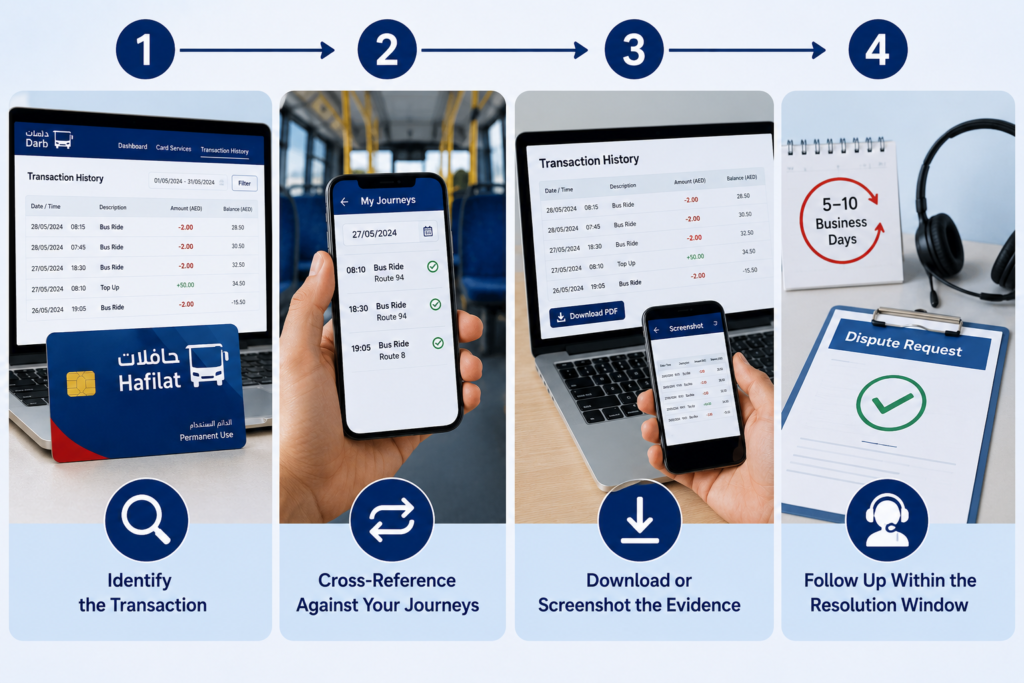
If you notice a discrepancy, a deduction you don’t recognize, a recharge that didn’t apply, or a fare that seems too high, here is how to use your transaction history to investigate and resolve it.
Step 1: Identify the Transaction
Log into the Darb portal with your account credentials and navigate to your full transaction history. Locate the specific transaction that appears incorrect, note the date, time, amount, and any route or location information.
Step 2: Cross-Reference Against Your Journeys
Compare the transaction record against your actual travel on that date. If you did not travel that day, or the amount deducted is significantly higher than expected, this is grounds for a dispute.
Step 3: Download or Screenshot the Evidence
Download the PDF transaction record or take a screenshot of the relevant entry before contacting support. This becomes your primary evidence for the dispute.
Step 4: Follow Up Within the Resolution Window
Most transaction disputes are reviewed within 5 to 10 business days. If you do not receive a response, follow up using the complaint reference number provided at the time of your initial inquiry.
Smart Habits for Monitoring Your Transaction History
Check your monthly transaction history once a week. You will quickly identify spending patterns which routes cost the most, how often you travel on weekdays versus weekends, and whether your monthly pass is saving you money compared to pay-per-trip fares.
Review your history immediately after any recharge. Confirm that the top-up appears in your history with the correct amount before closing the portal or app. This takes five seconds and confirms the transaction was processed correctly.
Save PDF statements monthly. If you commute for work and need to track transport expenses for reimbursement, downloading a monthly PDF from the Darb portal creates a clean, organized record with no extra effort.
Set a low balance alert for AED 20. Combining balance alerts with regular transaction history reviews gives you a complete picture of how much you have left and exactly how you used what you started with.
Check history after long periods of not travelling. Hafilat card balances have a 3-month validity period from the date of the last recharge. If you haven’t traveled in a while, check your transaction history to confirm the last recharge date and calculate whether your balance is approaching expiry. Activate the balance usage before expiration by using the card for travel or tapping the card on sales and recharge machines.
Frequently Asked Questions
How far back does the Darb portal transaction history go?
The Darb portal typically shows several months of transaction history for registered account users. Anonymous card lookups using only the serial number show a more limited recent history. For extended records going back a year or more, visit a Customer Happiness Center and request a printed statement.
Can I view transaction history for a card I don’t currently have with me?
Yes, if the card is linked to your registered Darb account, you can view its transaction history by logging in from any device. You do not need the physical card present; you only need your account credentials.
What if a transaction shows on my history but the fare seems wrong?
First, verify that you tapped both in and out correctly, failing to tap out results in the maximum route fare being charged automatically. If you are certain you tapped correctly and the fare is still incorrect, contact Hafilat support with your transaction record as evidence.
Does the Darb app show the same transaction history as the Darb portal?
The app shows recent transactions, but the full Darb portal particularly on desktop provides a more detailed and filterable history. For comprehensive records, use the portal; for quick daily monitoring, the app is sufficient.
Can I see the exact bus route or stop for each fare deduction?
Registered account users on the Darb portal have access to more detailed journey information than anonymous card lookups. The level of route detail available may vary depending on the version of the portal in use. For the most detailed journey breakdown, contact a Customer Happiness Center.
Is there a fee for requesting a printed transaction history statement?
Checking your transaction history online is free. Requesting a printed official statement at a Customer Happiness Center may involve a minimal administrative fee depending on the extent of the record requested and confirmed with the center directly before requesting.
Final Thoughts
Your Hafilat card transaction history is one of the most underused features of Abu Dhabi’s public transport system and one of the most valuable. Whether you are tracking daily commute costs, verifying a recent recharge, disputing an incorrect fare, or simply staying on top of your monthly transport spend through the DARBI App, the Darb portal and Darb app give you everything you need to manage your card with full transparency. Make reviewing your transaction history a regular habit once a week takes less than two minutes and keeps you in complete control of your card. And if you ever spot something that doesn’t look right, act quickly: the combination of your timestamped transaction record and Hafilat’s official dispute process makes resolving issues far simpler than most people expect.