Adding a Beneficiary in FAB Mobile App: Step-by-Step Guide for UAE Customers
You know you need to send money to someone, but typing their bank details every time is exactly the kind of small task that becomes annoying after a few transfers. Adding that person as a beneficiary in FAB saves their details so you can select them when you need to make a transfer later.
The important part is getting the beneficiary information right the first time. A wrong IBAN, account number or bank detail can delay a transfer or, in some cases, cause the payment to fail. FAB currently provides an “Add a beneficiary” guide through its official FAB Mobile support page, and its transfer service supports transfers to other FAB accounts, UAE banks and international destinations.
Safety Note: Only add a beneficiary when you have independently confirmed the recipient’s bank details. Never add a beneficiary because someone contacted you unexpectedly and asked you to do it. FAB specifically warns customers not to add a beneficiary at another person’s request and says not to share OTPs or banking details with anyone.
Official FAB Mobile guide: FAB Mobile – Add a beneficiary and transfer guides
What Does “Beneficiary” Mean in FAB?
A beneficiary is the person, business or bank account that you want to send money to.
Think of it as saving a recipient before making a transfer. Instead of entering their banking information from scratch each time, you can select their saved details when making another payment.
For example, you might add:
- A family member in the UAE
- Your landlord or another regular payment recipient
- A supplier or business contact
- Someone with an account at another UAE bank
- A recipient overseas
FAB’s digital transfer service supports transfers between FAB accounts, transfers to other UAE banks, international transfers and certain instant-transfer options.
What You Need Before Adding a Beneficiary
The exact information requested depends on the type of transfer and the destination.
For a UAE bank beneficiary, have the recipient’s:
- Full name
- Bank name
- UAE IBAN or account information requested by FAB
- Other details shown as required in the app
For an international beneficiary, you may need information such as:
- Beneficiary’s full name
- Account number or IBAN
- Bank name
- SWIFT/BIC details
- Country
- Currency
- Other bank or beneficiary information requested by FAB
Do not guess any of these details. Ask the recipient for their official bank details and copy them carefully.
FAB’s own beneficiary-maintenance guide shows that the required fields can include beneficiary name, address, phone number, identification information, bank details, currency and, for international transfers, SWIFT and account/IBAN information.
How to Add a Beneficiary in FAB Mobile
The wording and position of buttons can change when FAB updates the app, so you may not see exactly the same screen as another customer.
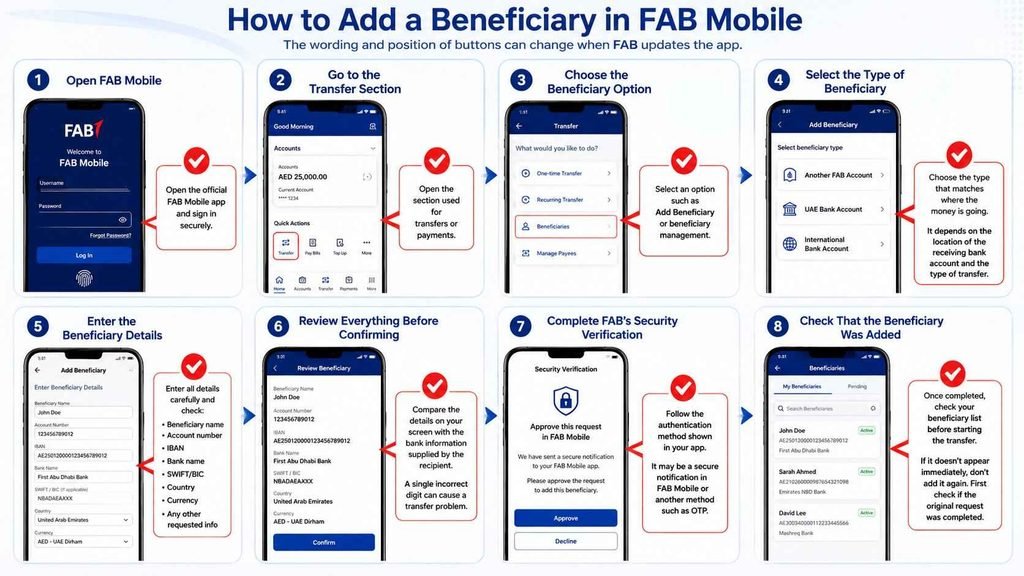
The basic process is:
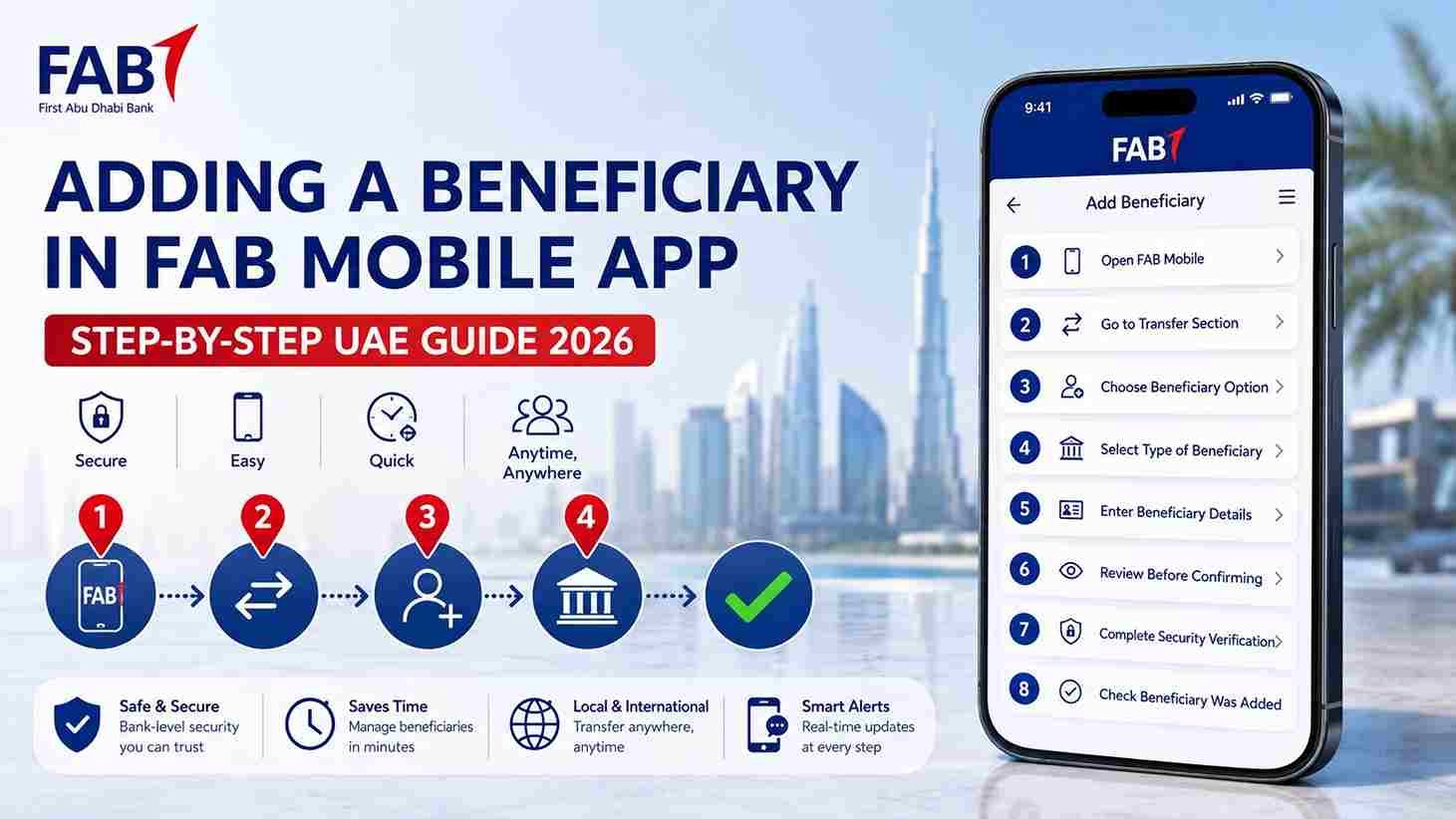
Step 1: Open FAB Mobile
Open the official FAB Mobile application and sign in securely.
FAB says its mobile app is available for iPhone and Android devices and supports everyday banking services, including account and card management and payments.
If you have not registered for FAB Mobile yet, you may need your FAB customer number, debit card number or credit card number, together with a compatible smartphone and secure internet connection.
Step 2: Go to the Transfer Section
After logging in, open the section used for transfers or payments.
The exact menu wording can change with app updates, so look for the transfer/payment option rather than relying on an old screenshot.
FAB confirms that its mobile app supports setting up one-time and recurring transfers.
Step 3: Choose the Beneficiary Option
Look for an option such as Add Beneficiary or the beneficiary-management option within the transfer area.
FAB currently provides a dedicated Add a beneficiary guide on its official Mobile Banking page.
Step 4: Select the Type of Beneficiary
Choose the transfer type that matches where the money is going.
Depending on your transfer, this can include options for:
- Another FAB account
- A UAE bank account
- An international bank account
Don’t choose an international beneficiary simply because the recipient is a foreign national. What matters is where the receiving bank account is located and what type of transfer you are making.
Step 5: Enter the Beneficiary Details
Enter the requested information carefully.
This is the part where you should slow down.
Check:
- Beneficiary name
- Account number
- IBAN
- Bank name
- SWIFT/BIC, if applicable
- Country
- Currency
- Any other requested information
FAB’s official beneficiary guide demonstrates separate beneficiary setups for transfers within FAB, domestic transfers and international fund transfers.
Step 6: Review Everything Before Confirming
Don’t rush through the confirmation screen.
Compare the details on your screen with the bank information supplied by the recipient.
A single incorrect digit in an account number or IBAN can cause a transfer problem.
Step 7: Complete FAB’s Security Verification
FAB may require you to authenticate the beneficiary addition through its security process.
This is an important point because you should not assume that every FAB transaction now uses an SMS OTP.
FAB says that for activities including beneficiary additions, a secure notification can be sent to FAB Mobile so you can approve or decline the request. It also explains that some older/other authentication methods can involve OTPs.
Follow the authentication method actually displayed in your FAB Mobile app.
Step 8: Check That the Beneficiary Was Added
Once the process is completed, check your beneficiary list before starting the transfer.
If the beneficiary does not appear immediately, don’t create another beneficiary with the same details. First check whether the original request was completed.
How to Send Money to the New FAB Beneficiary
Once the beneficiary has been added, you can start a transfer from FAB Mobile.
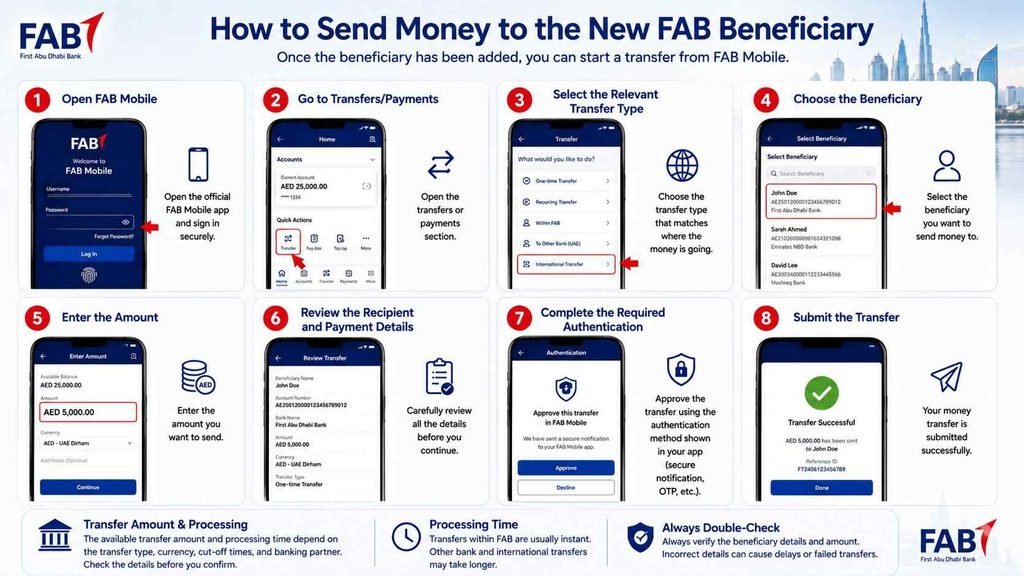
The basic process is:
- Open FAB Mobile.
- Go to transfers/payments.
- Select the relevant transfer type.
- Choose the beneficiary.
- Enter the amount.
- Review the recipient and payment details.
- Complete the required authentication.
- Submit the transfer.
FAB says transfers can be set up through FAB Mobile in a few steps, including one-time and recurring transfers.
The available transfer amount and processing time depend on the destination and type of transfer.
How Long Does a FAB Beneficiary Take to Become Active?
Don’t assume that every newly added beneficiary becomes immediately available for every type of transfer.
The availability of a beneficiary and any security checks can depend on the transaction and FAB’s authentication procedures.
If the beneficiary has been successfully added but you cannot immediately send money, check the message displayed in FAB Mobile rather than repeatedly adding the same person.
Can You Add a UAE Bank Beneficiary in FAB?
Yes. FAB’s transfer service supports transfers to other banks in the UAE. FAB also provides a dedicated guide for transferring to another UAE bank.
For a UAE beneficiary, the recipient’s IBAN is particularly important.
Before confirming the beneficiary, compare the IBAN carefully with the information supplied by the recipient.
Can You Add an International Beneficiary in FAB?
Yes. FAB Mobile supports international transfers, and FAB provides a separate international-transfer guide.
International beneficiaries can require more information than UAE beneficiaries, including bank and SWIFT details.
FAB also warns that international transfers can involve correspondent-bank fees, exchange-rate differences and delays caused by additional transaction checks.
So don’t judge the cost or arrival time of an international transfer only from what you see when adding the beneficiary.
Does Adding a Beneficiary Cost Money?
Adding a beneficiary is different from making a transfer.
FAB states that most FAB Mobile services are free, but certain transfers can incur charges.
Therefore, don’t assume that because you can add a beneficiary without a visible charge, the subsequent transfer will necessarily be free.
Transfer fees depend on the type of transfer and destination.
Why Can’t I Add a Beneficiary in FAB?
If the beneficiary addition is not going through, check the basics first.
Incorrect IBAN or Account Number
Recheck the recipient’s banking details.
Don’t modify an IBAN yourself to make it fit what you think the format should be.
Incorrect Bank Selected
Make sure you selected the correct bank.
For an international beneficiary, also check the SWIFT/BIC information supplied by the recipient.
Missing Information
The app may require additional information depending on the beneficiary type.
Complete all mandatory fields shown on the screen.
Authentication Problem
If the security approval does not arrive or cannot be completed, check FAB Mobile and your registered contact details.
FAB has moved toward in-app authentication for certain activities, including beneficiary additions.
App or System Problem
If FAB Mobile is not working properly, FAB recommends updating the app or trying again later. If the problem continues, the bank advises customers to contact it.
What If the Beneficiary Is Not Showing?
Before adding the person again, check whether the first request actually completed.
Try:
- Close and reopen FAB Mobile.
- Check your beneficiary list again.
- Check for any pending security approval.
- Make sure the app is updated.
- If the beneficiary still does not appear, contact FAB.
Creating duplicate beneficiaries can make your list unnecessarily confusing, especially when several recipients have similar names.
What If FAB Says the Beneficiary Details Are Invalid?
Go back to the original information supplied by the recipient.
Check the:
- Name
- IBAN
- Account number
- Bank
- Country
- SWIFT/BIC, where applicable
If the recipient sent the information through WhatsApp or another messaging service, don’t rely on an old message if the account details may have changed.
For a large transfer, it is sensible to confirm the details directly with the recipient before sending the money.
Can Someone Add a Beneficiary for Me?
You should not allow another person to control your banking session or ask you to add a beneficiary on their behalf because they contacted you unexpectedly.
This is particularly important if someone says:
- “I am from FAB.”
- “Your account is blocked.”
- “You need to add this beneficiary to receive a refund.”
- “Add this beneficiary so we can fix your account.”
- “Give me the OTP to complete the process.”
FAB explicitly warns customers never to add a beneficiary at someone else’s request and never to share OTPs or banking details with unsolicited callers or messages.
If you receive a suspicious request, stop the process and contact FAB through an official channel.
Is It Safe to Add a Beneficiary in FAB Mobile?
Yes, FAB provides security controls around digital transactions, but your own actions still matter.
FAB says that certain activities, including adding beneficiaries, can trigger a secure notification in FAB Mobile for approval or rejection.
The safest approach is simple:
Only approve a beneficiary addition that you personally started.
If you receive an approval request that you did not initiate, decline it and contact FAB.
What If You Accidentally Add the Wrong Beneficiary?
Don’t send money to the beneficiary simply because they are already saved.
First verify the details.
If you realise that the beneficiary information is wrong, check the options available in FAB Mobile for managing that beneficiary. If you cannot correct the details yourself, contact FAB rather than guessing which information should be changed.
FAB Customer Care for Beneficiary Problems
If you cannot add a beneficiary, cannot complete the authentication, or believe there is a security issue, contact FAB directly.
FAB customer care in the UAE: 600 52 5500
Outside the UAE: +971 2 681 1511
FAB currently lists its UAE customer-care service as available 24/7. It also allows customers to raise inquiries and complaints through the Help section of FAB Mobile.
FAB official customer support and complaints page
FAB Beneficiary vs Making a Transfer
These are two different actions.
| Action | What it does |
|---|---|
| Add beneficiary | Saves the recipient’s banking details |
| Make transfer | Sends money to the selected recipient |
| Edit beneficiary | Changes available beneficiary information |
| Remove beneficiary | Removes a saved recipient |
| Check transfer | Lets you review the transaction/status |
This distinction matters because adding someone to your beneficiary list does not mean money has been sent to them.
FAB Transfer Options You Can Use
FAB currently lists several transfer services through FAB Mobile, including:
- Transfers between your FAB accounts
- Transfers to other FAB accounts
- Transfers to other UAE banks
- International transfers
- Certain instant international transfers
- SMS cash transfers
For UAE local transfers, FAB currently states that transfers of up to AED 25,000 can be processed instantly, while transfers above AED 25,000 are subject to stated cut-off times and processing rules.
That is a transfer-processing limit, however, and should not be confused with a beneficiary limit.
Common Questions About Adding a Beneficiary in FAB
How do I add a beneficiary in FAB Mobile?
Open FAB Mobile, go to the transfer/payment area, choose the option to add or manage beneficiaries, select the appropriate transfer type, enter the recipient’s details and complete the security authentication shown in the app.
Can I add a beneficiary from another UAE bank?
Yes. FAB supports transfers to other UAE banks, so you can set up a beneficiary for an eligible UAE bank account.
Can I add an international beneficiary in FAB?
Yes. FAB Mobile supports international transfers and provides a separate international-transfer guide. You may need the recipient’s account/IBAN, bank details and SWIFT/BIC information.
Do I need the beneficiary’s IBAN?
For many bank transfers, yes, particularly for UAE transfers. The exact information required depends on the transfer type and destination.
Is adding a beneficiary free?
Adding a beneficiary and making a transfer are separate things. FAB says most FAB Mobile services are free, but certain transfers can have charges.
Why is FAB asking me to approve the beneficiary in the app?
This is part of FAB’s security authentication. FAB says secure notifications can be sent to FAB Mobile for activities such as adding beneficiaries.
I received a beneficiary approval request that I did not make. What should I do?
Do not approve it. FAB advises customers not to add beneficiaries at another person’s request. Contact FAB through an official channel if you suspect fraud.
Can I add a beneficiary using FAB Online Banking?
FAB provides beneficiary-management functionality through its digital banking services, while the exact steps can differ between FAB Mobile and Online Banking. FAB’s official Mobile Banking page also provides separate guides for beneficiary and transfer tasks.
Final Takeaway
Adding a beneficiary in FAB is mainly about saving the recipient correctly before you send money. The process itself is straightforward, but the details deserve your attention—especially the IBAN, account number, bank and international transfer information.
If FAB Mobile asks you to approve a beneficiary addition, make sure you were the person who started the request. Never approve an unexpected request simply because someone claims to be from the bank. FAB’s security guidance specifically warns customers about this type of fraud.
For the latest app instructions, use FAB’s own Mobile Banking guides because the names and positions of buttons can change when the app is updated.
For more practical UAE banking guides and balance-check information, visit UAEBankBalance.com.